
Contact Us
Contact Us
+91-7708009900
 Accredited Registrar
Accredited Registrar
Accredited Registrar
How to upload files in Windows server using Plesk 10?
Follow the below steps to upload the files in your Plesk 10,
Step 1: Login to your Plesk account. Choose the Websites and Domains menu and click the File Manager icon.
Step 2: Click the 'httpdocs' under the files category.

Step 3: A new page displays. Now click the Add New File icon.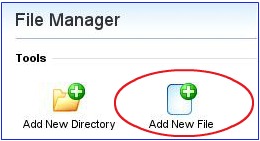
Step 4: Click the Upload File menu in this page.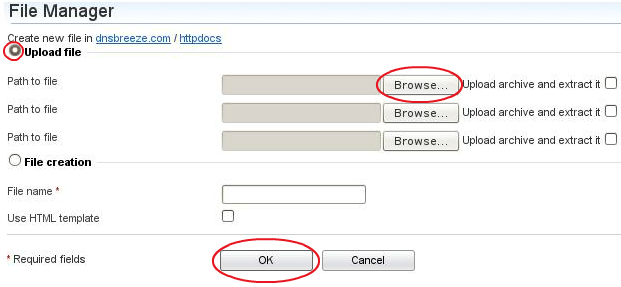
Step 5: Click the browse button to select the file you want to upload. The file which you chose will be uploaded.
|
Not at all
helpful Not much
helpful Some what
helpful Very
helpful Extremely
helpful | ||||||||
What could be better? (Optional)
X
Not related to my issue
Too complicated explanations
Too much information
Incorrect information
Unclear information
Incomplete information
Too old information
Do you have any other feedback about this faq ? 1000
| ||||||||
 ]
]
