
Contact Us
Contact Us
+91-7708009900
 Accredited Registrar
Accredited Registrar
Accredited Registrar
How to make ODBC data source configuration in windows plesk?
Follow the below steps to make the ODBC data source configuration in windows plesk,
Step 1: Login to your plesk control panel and click the Websites & Domains menu in the homepage.
Step 2: Click the Show Advanced Operations link at the bottom of the page.
Step 3: A new page is displayed. Click the ODBC Data Sources option.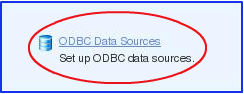
Step 4: Now click the Add New ODBC DSN icon under the tools category.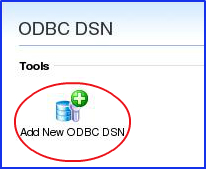
Step 5: In the new page, enter the connection name, set the Driver as Microsoft Access Driver and click Ok.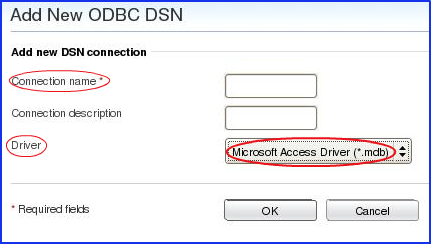
Step 6: A page named Set Up an ODBC Connection is displayed. Now fill the File path, enter your Login ID and password. 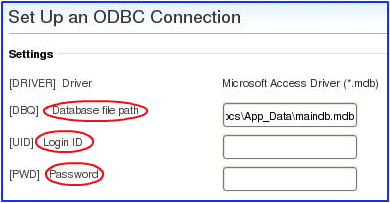
Step 7: The file path should be created as mentioned below.
C:Inetpubhostsyoursitename.comhttpdocs olderyoucreateddatabase.mdb
You must give 'Write Permission' to the folder in which the datasource file (mdb file) is uploaded.
Step 8: After filling the required fields, click the Test Connection button.
Step 9: Now the ODBC data source configuration is made in your plesk account.
* Note that in above mentioned code in Step 7, you must replace the word 'yoursitename.com' with your website's name. Also assign proper values to folder and file created by you.
|
Not at all
helpful Not much
helpful Some what
helpful Very
helpful Extremely
helpful | ||||||||
What could be better? (Optional)
X
Not related to my issue
Too complicated explanations
Too much information
Incorrect information
Unclear information
Incomplete information
Too old information
Do you have any other feedback about this faq ? 1000
| ||||||||
 ]
]
